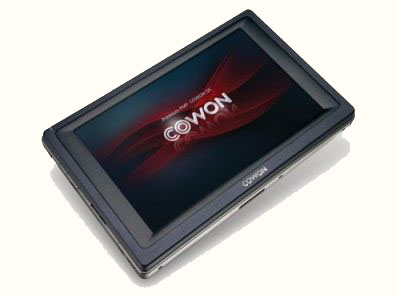
Cowon Q5W Teardown & Hard Drive Upgrade
There’s already a good, in-depth review on gadgetaholic.com of Cowon’s new, wi-fi enabled, super-PMP (personal/portable media player), the Cowon Q5W, but I’m going to attempt to answer a burning question of current and would-be Q5W owners: “How can I get more storage than 60gb?”
The simple answer is, “Stick a bigger hard drive in it!”. Can it be done? The only answer I can give at this moment is, “I don’t know…yet. But I intend to find out!” First thing I need to do is figure out what’s going on inside of the Cowon. I’m looking to see what kind of hard drive it has, the hard drive connector type, general layout of the internals, available space, etc. That means I have to pull it apart.
Update: This upgrade is possible! Read on…
Beware!If you choose to follow along with the following steps, you WILL void your warranty. I’m accepting the risk for my own Q5W in the name of science and bragging rights, but you might want to think twice about messing with yours and wait to see if I blow mine up first!
Tools you’ll need:
1. A Torx head screwdriver, size T5 (I have no idea what T5 means, except that it’s pretty small). If you’re not familiar a Torx fastener, it’s sort of like an allen head fastener, except instead of a hexagon shape, its more of a star-like shape. I bought a T5 Torx head screwdriver at Radio Shack this afternoon.
That’s it.
Next,we’re going to remove the back cover of the Q5W. This is very easy.
1. There are six torx screws; three on top, and three on the bottom (see photos – the photo on the right shows the screws removed).
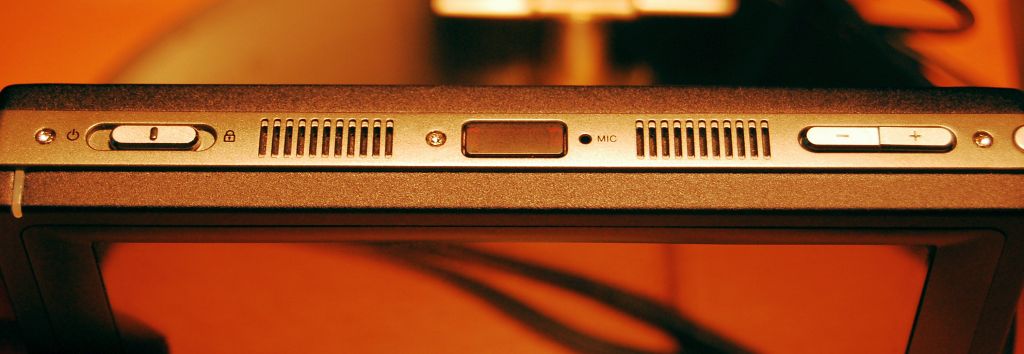
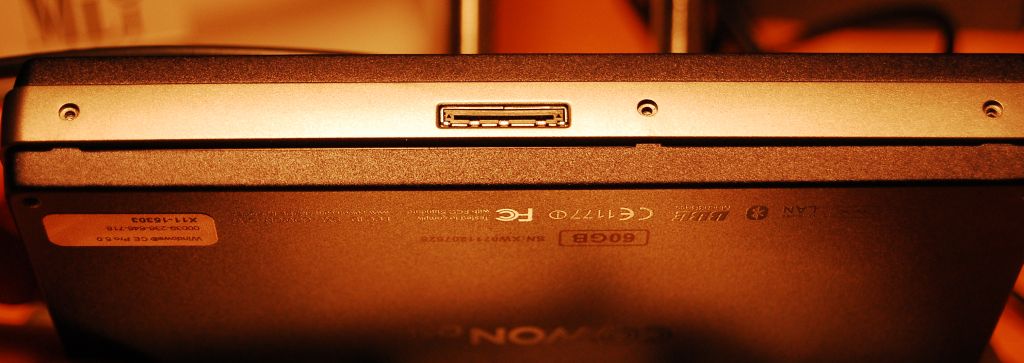
2. Gently wiggle the cover off. Be careful here because the battery is mounted to the back cover that you’re tugging on and there is a VERY short battery connector cable to the main circuit board. The connector cable is at the bottom of the unit, so as you’re wiggling off the back, once it’s free of the unit, swing it open as though it’s hinged at the bottom. This will ensure you don’t pull on the connector.
3. Once inside, the hard drive is immediately visible. Pull out the black rubber shock absorber around the drive. As previously noted, check out the short battery connector (left image below).
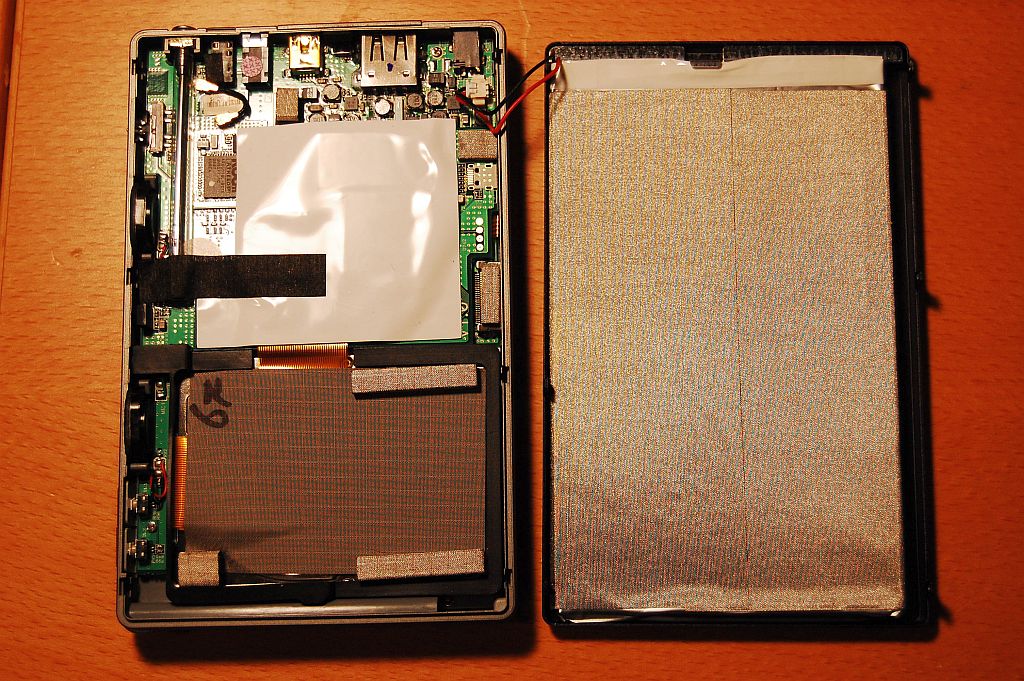
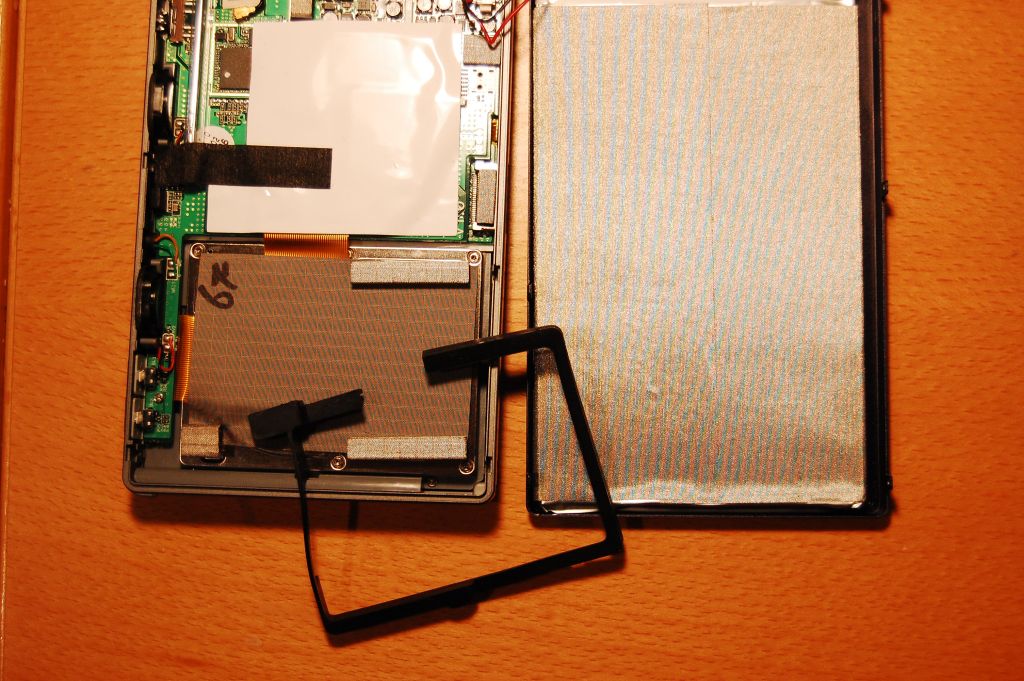
4. There are some springy mesh shock absorbers stuck on the drive. Gently pull them off and peel back the hard drive cover. It too is stuck on the drive. Pull it back from the direction where the ribbon cable connects to the drive. Once part of the ribbon is exposed, hold it with your thumb while you continue to pull the cover off so you don’t put undue stress on the ribbon.
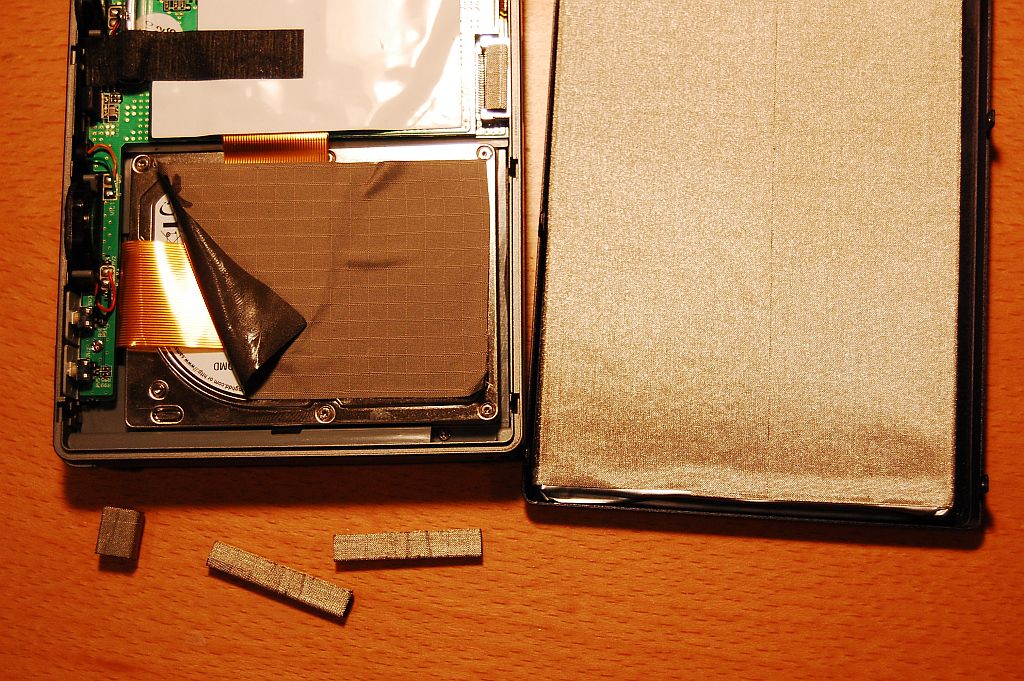
5. Sit back and admire your accomplishment! Now put it back together exactly as you found it!!!
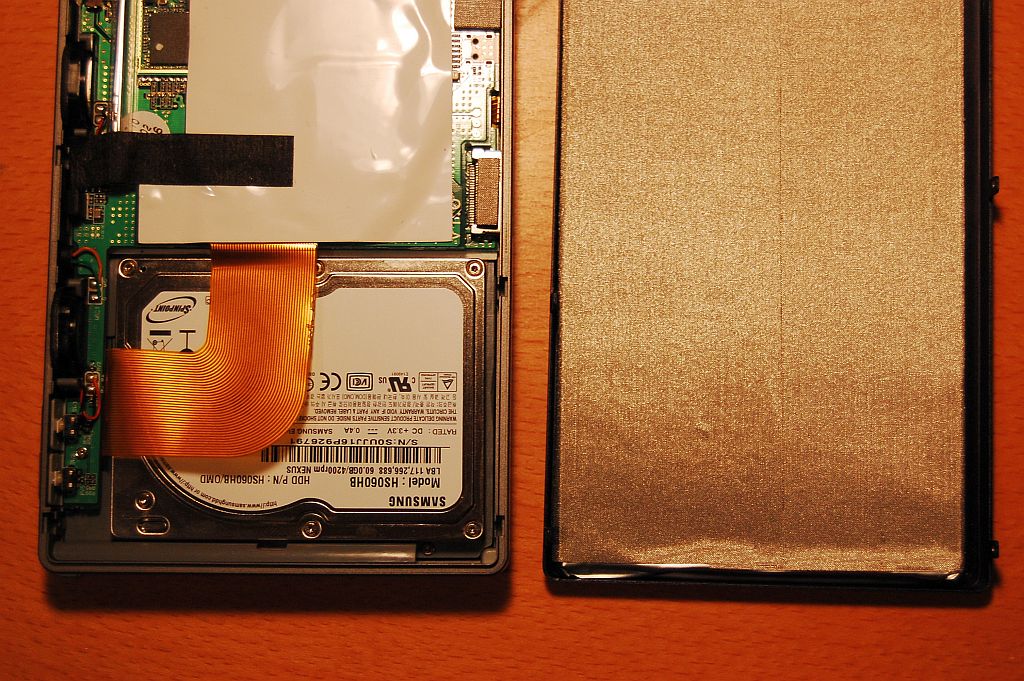
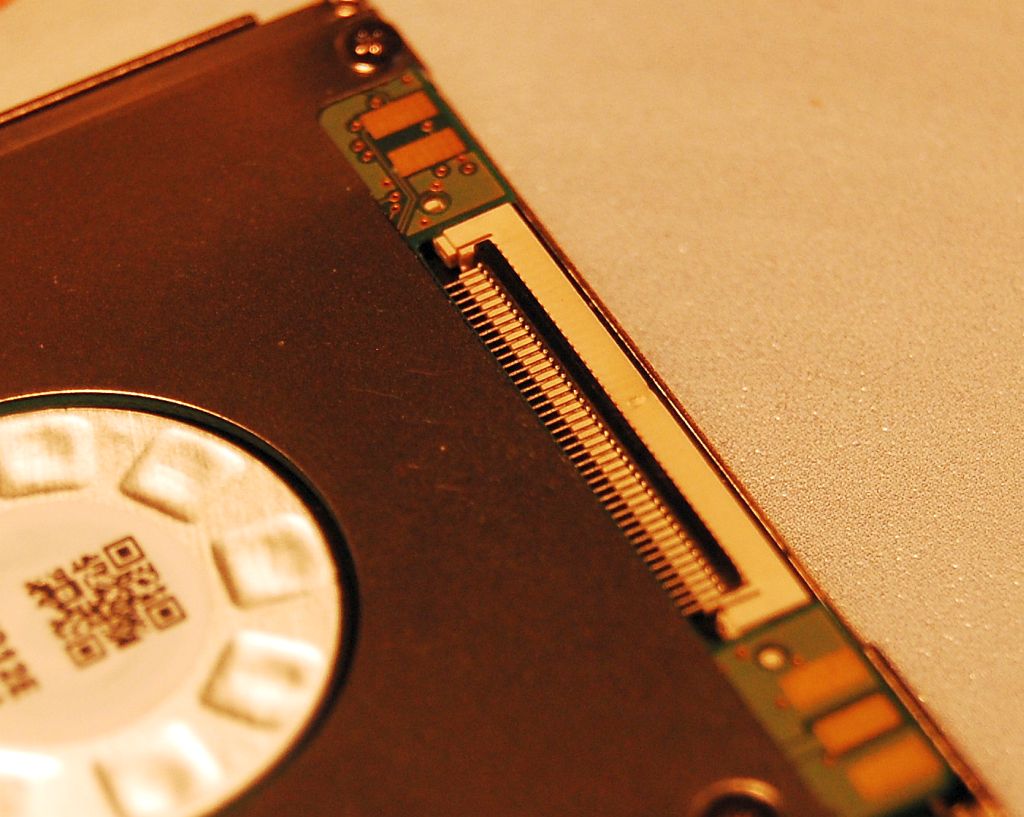
observations so far is that the Q5W’s hard drive is a 1.8″ Samsung model number HS060HB. It has a ZIF ATA-100 connector, similiar to the 1st generation Zune 30gb (not sure about Zune 2), Creative Zen Vision W, and 5th generation video Ipods. It is a thin drive, thinner than the stock 60gb drive in the Zen, which I have, but there is no problem fitting athicker drive into the Q5W, there is ample room.
What’s next: I am going to attempt to stick ahigher capacityhard drive in the unit (a 100gb 1.8″ Toshiba MK1011GAH). The Q5W is a Windows CE device at its core, so it won’t be a simple matter of swapping out the old drive and putting in a new one. It’s a bit more complicated, so stay tuned!
Dec 18, 2007 Update:
New drive has been shipped. Should be here by Friday, Dec 22nd, so I will be working on the upgrade, hopefully with an update by the next day.
Dec 24, 2007 Update: New drive has arrived! Once again the Q5W was on put onto the operating table for the hard drive transplant. Here are the steps I performed to do the upgrade.
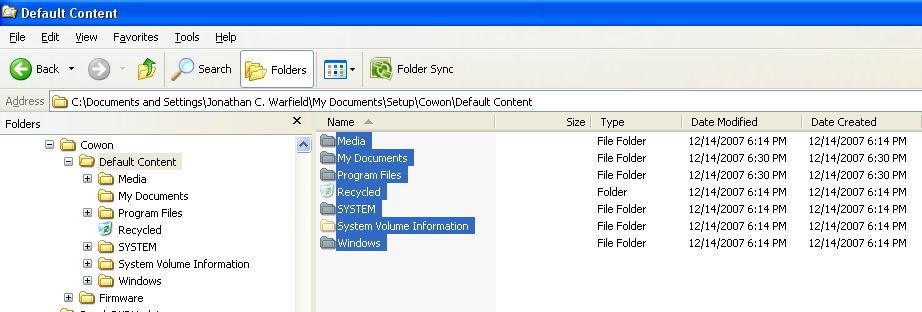
- Copy ALL of content on your Cowon (not just your media files) to a folder on your PC. All folders, files, subfolders including the Windows system files. Make sure you keep all existing file and folder structures when you copy. I put them in a folder on my C: drive on my desktop computer.
- Follow the steps above, disassemble your Q5W and remove the hard drive. The ZIF ATA-100 connector can be tricky. On the 60gb drive, there is a black connector lock that needs to be flipped up. Use your fingernail to get under it, and flip it towards the ribbon. I’m sorry I can’t give a better description of this process. The photo below shows the black connector (the thin, black strip) in the up postion.
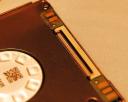
- Install the new drive. You will need to flip the connector lock up on the new drive in order to insert the ribbon connector.
- Once the new drive is in place, stick the large, sticky cover back on the ribbon cable. In my situation with the new Toshiba drive, I did not need to install the springy spacers because the Toshiba drive is thicker than the stock 60gb drive (see photo below – the stock 60gb drive is on the left, the Toshiba drive on the right).

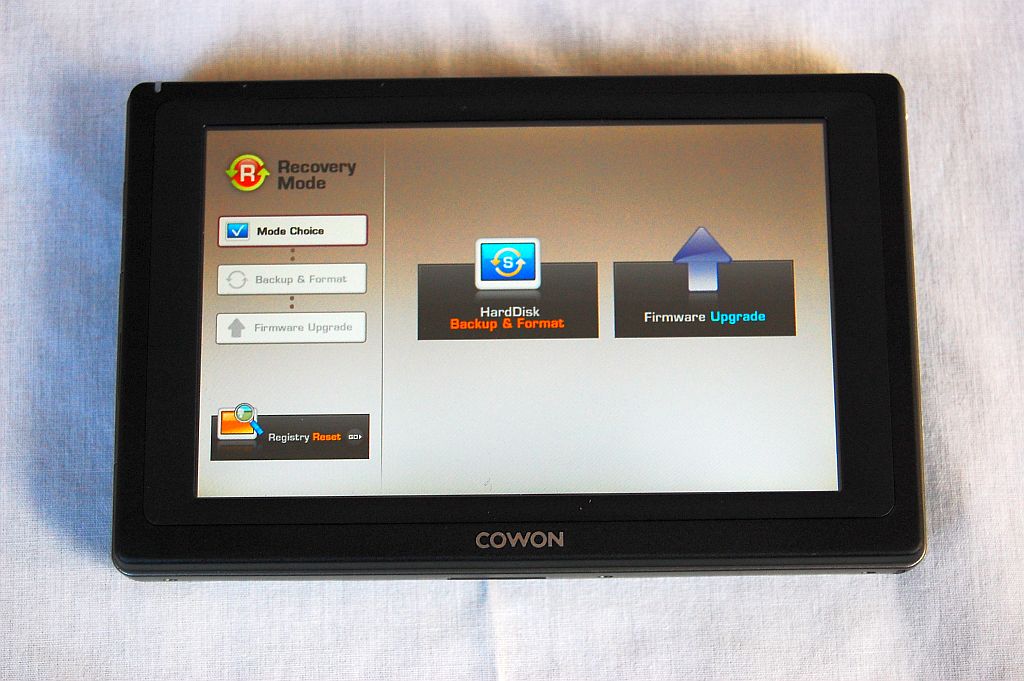
- Boot your Cowon in Recovery Mode. Do this by first pressing the ‘+’ volume button, then sliding the power switch to the on position and holding. The device should boot up and the screen will go into recovery mode.
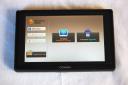
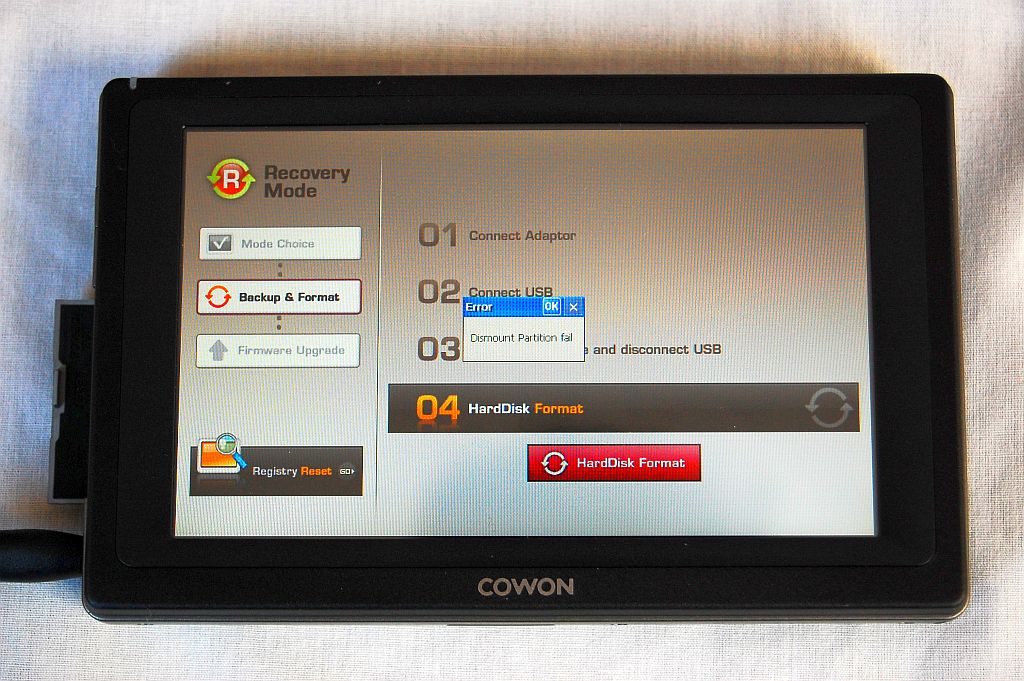
- Once in Recovery Mode, connect your Q5W to your computer. Here’s where it gets a little weird. The new drive needs to be formatted, and formatted with the FAT32 file system. Yup, you heard right. The stock 60gb drive is FAT32. My new 100gb drive came formatted with the NTFS file system, and although the Q5Wcould read the drive contents, it would not boot. There is an option to format the drive in the Q5’s Recovery Mode menu, but it won’t work. The Q5W will generate an error message “Dismount Partition Failed”.
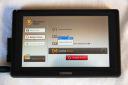
I’m running Windows XP, so there is no option for formatting a drive with the FAT32 file system. I downloaded a free utility called “fat32format.exe” from here (direct link to the utility here). Copy this utility to your PC. - Take note of your Q5’s drive letter in Windows Explorer. On my PC, it was listed as the G drive.
- Open a Command Prompt window on your PC (Start -> Run, type “cmd”, and press enter). Change the directory to the root of C (or wherever you placed the fat32format.exe file).
- Type “fat32format.exe g” (replace g with whatever your Q5’s drive letter is on your PC). The program will ask if your sure you want to format, respond with ‘y’. The format only takes a few seconds.
- Once the format is complete, copy all of the content you copied back in step 1 in this list back onto the Q5.
- Shut down your Q5 and restart normally. That’s it!

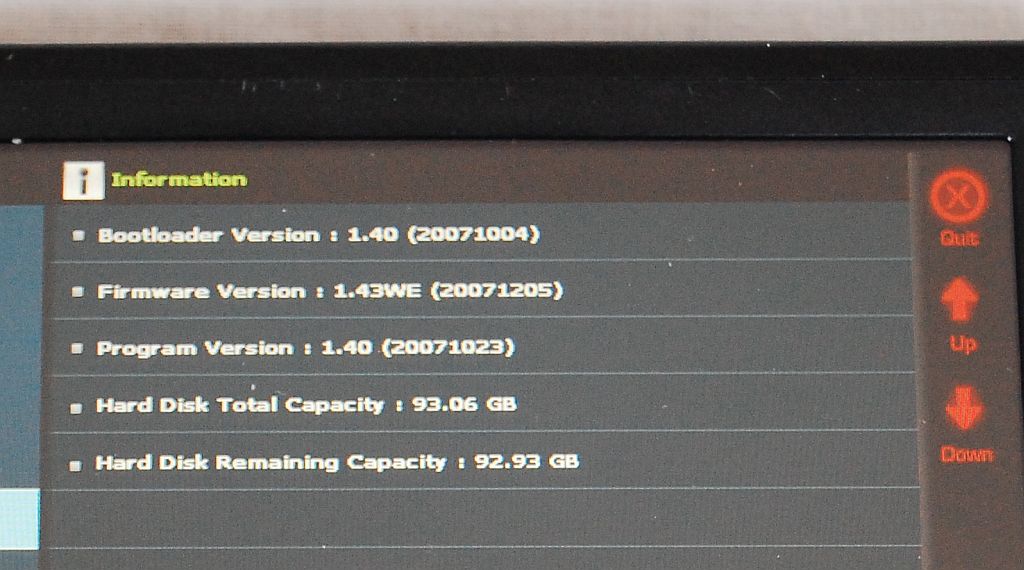
If all goes well for you, go into your Q5’s system stats and marvel at the additional 40gb of storage.
Some of you are probably already thinking bigger, like the new crop of 160gb drives from the iPod classic. Beware! I examined one of these drives and it does not have the same type of connector as the Cowon’s stock drive. The iPod classic uses a CE-ATA connector which is smaller than the Cowon’s ATA-100 connector.
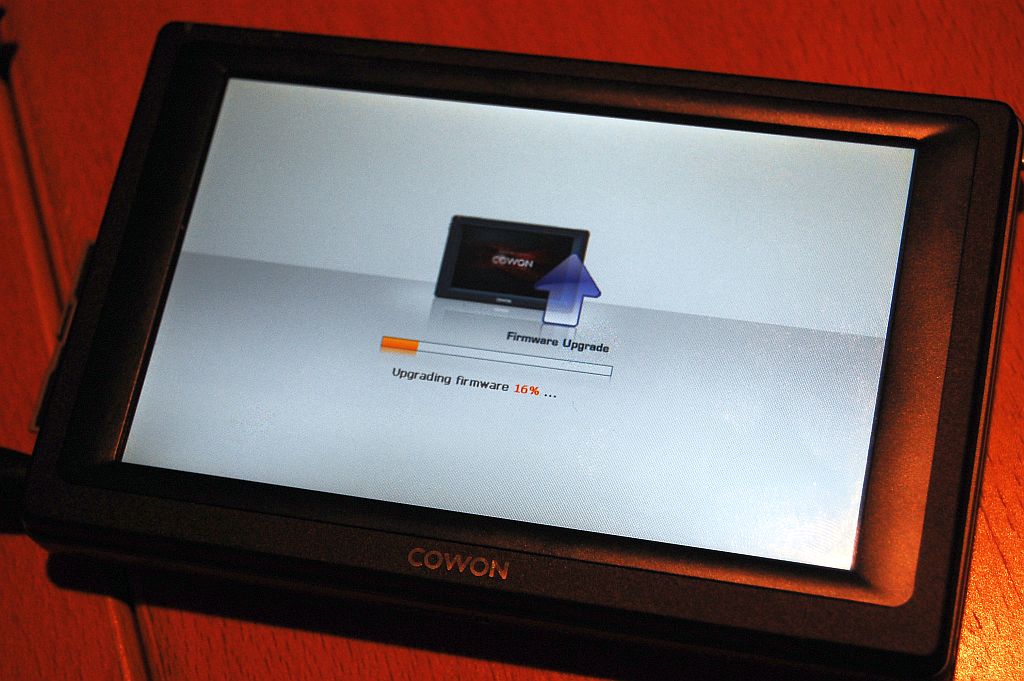
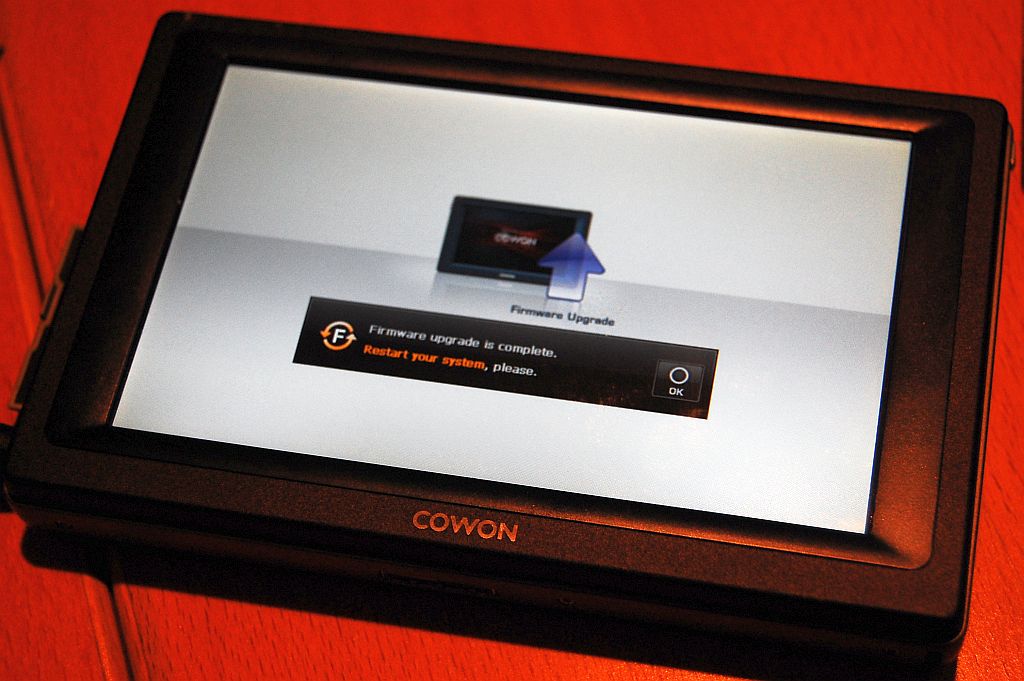
Firmware upgrades: Yup, they work too:
Hope you enjoyed this article. I found the upgrade easy to do once I figured a few things out. I didn’t immediately discover that the file system on the Cowon’s stock drive was FAT32, but using the Disk Manager in Windows XP allowed me to determine the file system. You can format disks with Disk Manager, but the only formatting option is NTFS.
If you would like me to perform this upgrade for you, I’ll charge you a modest fee of $50 (plus postage) to do the work. But you should really try it yourself! It really is easy. If you still feel unsure of yourself, and want me to do the upgrade, you’ll need to send me your Q5 and the Toshiba drive. Important: Performing this work WILL void your Q5’swarranty. I cannot beheld responsible for any repercussions related to a voided warranty. Do this at your own risk!!!
If you’re still interested, leave me a post at the bottom of this page (I won’t publish it for public viewing) with an email address forcontacting you, and I’ll send you a shipping address.

I dunno, try removing Internet Explorer. Don’t ask me how coz I dunno.
Does anyone know where I could buy the 240GB Toshiba MK2431GAH?
I called Toshiba, and they said that it has the ZIF connector.
i had a buggy Q5 that needed reformatting, but i wasnt able to salvage my files first, does someone know where i can get the Q5’s system files, including the version of CE 5.0 that it comes with?
If you download the latest firmware and apps, that should be everything you need to get your Q5 going again. Get both the firmware and apps here: http://www.cowonamerica.com/download/cowon_q5w_jsfw.html
It will probably be some time before the Toshiba drive it is available for sale to the general public. Right now its probably going to major vendors and suppliers for use in their products first.
Hello,
I stumbled across this site after searching in despair for a remedy to my problem and now there seems to be a glimmer of hope. Here’s my situation:
I recently purchased a used Cowon q5w from ebay, originally a 40 GB model, that had been upgraded to 120 GB by the vendor. I thought, cool, I’d spend less money than for a new one and get a lot more memory.
Upon receiving the player, it turned out that the battery was chronically low and despite charging never got above 25% or so. I also couldn’t connect via wireless to the Internet, regardless of what I tried. I sent it back to the seller for him to take care of the battery and check if the WLAN settings were OK. I just got it back: he didn’t specify what he did, but the battey is normal now; however, there are other problems like: whenever I switch off the player and turn it on later, all of the equalizer settings are reset to 0, and it’s really annoying to set them again every time I turn it on. Internet access is still no go. From the very beginning when I got the player the first time, there was this: when playing an album, there would be spaces of 2-3 seconds between tracks as well as a click when the player was apparently searching for the next track. Hearing those clicks and the pauses was also annoying and it ruins the listening experience for me.
The main reason I’m writing to you is to ask you if you have experienced similar quirks after having changed the memory of your Q5W as you described in this article. Can there possibly be a correlation between upgrading the memory as you did and the performance quirks that I’ve noticed with my player?
As far as Internet, the seller told me he had absolutely no problems connecting. Perhaps it’s simply a matter of configuration, but perhaps there may be something related to the memory upgrade?
I’d very much appreciate your feedback about my situation. I think the Q5W is a great player, but these little annoying glitches tarnish this thing and I’m considering getting rid of it and getting a new one like I should have the first time around. Seeing your article, I could even venture to upgrade the memory myself. 🙂
Thanks in advance,
Peter Sedy
Hi Peter, since upgrading the amount of storage on a Q5 is simply a matter of swapping hard drives, that shouldn’t affect how the device’s software operates in anyway. What you should do is go to Cowon’s website and download and install the latest firmware and apps at http://www.cowonamerica.com/download/cowon_q5w_jsfw.html and see if that helps.
Has anyone seen a cable for the Q5W that allows you to “charge” and “line-out” through the dock connector, into a power supply from your car. I’m thinking just like the ipod. We know the dock connector has line-outs, we know it also has power inputs, because it charges through it when the car dock is purchased. I’m thinking it’d be really convenient to just connect the dock connector when you get in the car. I also wanna use an external DAC for the Coax out, but that can be done now with the supplied cable. I also would like it to charge through the dock cable.
I examined the supplied audio/video cable with a simple continuity tester, and found the following. Maybe someone expert can take this and make it useful.
Connector pins below are in order left to right while holding the unit right side up.
1. unknown
2. unknown
3. unknown
4. unknown
5. unknown
6. unknown
7. unknown
8. black wire (Composite video)
9. green wire (Component video RED)
10. unknown
11. unknown
12. white wire (Analog audio RIGHT)
On the other side of the connector’s circuit board,
13. brown wire (Analog audio LEFT)
14. unknown
15. unknown
16. yellow wire (Component video GREEN)
17. red wire (Component video BLUE)
18. unknown
19. unknown
20. unknown
21. blue wire (Digital audio COAXIAL)
22. black/bare wire (Signal ground)
23. unknown
24. unknown
It appears that all of the negative terminals from all of the cables, are connected to the common signal ground port. I didn’t dare to put 5V into any of the unknown ports to see if it charges the Q5W, because I’m afraid it can mess it up permanently.
Thanks for the info on upgrading a q5w. Question I have is will the 240 gig Toshiba drive work in my q5w? Thanks!!!
At this time I don’t know. I have one of the 240gb drives on order, but they are hard to come by. Once it arrives, I will try it out and post an update.
Thank you for responding quickly.
Bill
hi dude!…
i have a problem whit my new COWON, i have search for someone who can help me to solve it, and i have found you… i hope you can help me…
here is the problem, y have just bought a new cowon q5w from ebay, when thos one arrives (im from ecuador) it have a problem whit the display, the first time i turn it on, the screen gives me vertical black lines , then i must turn it off, then turn it on again so it start working, i must follow this procedure each time i want to turn it on…
also, when the cowon starts the stanby mode, (black screen), it got the same problem with vertical lines, so i must force the standby mode and then click the screen just for got image again.
when i start a program, (e.g solitarie) and change to the main screen, the last screen in solitairie stays as a watermark on the main menu.
i think this is a factory defect, but as i live in ecuador, its hard to me to send it back to USA, if you can figure out whats going on whit my poor COWON, and can help me fixing this problem i would be thank you.
PD: sorry if my english is not good, i hope you understand the problem…
my email: pomero1@hotmail.com
That’s all very strange. You could try downloading the latest firmware, and apps from Cowon and see if that helps. If not, then it’s likely that your only option is to send it in for repair.
who repairs q5w unit other than cowon at a cheap price?
The only one I know is Cowon. You might check rapidrepair.com.
i have a cowon q5w 80gb. i want to upgrade harddisk to 240gb. and how can i upgrade system. now it hvae windows ce 5.0, but i want to install windows ce 6.0. how can i do it.
do you still do cowon hard drive upgrades? any new info on the ” dual platter issue” and if this relates to the q5w? I can get a 240 gig toshiba
I can do the upgrade. I don’t know about the dual platter issue. The info came from RapidRepair and I haven’t been able to find any follow up data on the issue. RapidRepair does not deal with Cowon players, so I don’t know if the platter issue affects all players.
Hi,
would you tell me the reference of the 240 gb disk you had place into your COWON Q5?
Are they the same steps as a 100gb?
thank you for your answer.
bests regards
The steps for the 240gb drive would be the same, although I have not put one in my Q5.
Hi,
what type of disk have you placed in your Q5?100Gb, 120 or 160GB?
and would you give me the reference.
is the TOSHIBA MK1214GAH could run in the Q5?
thank you for your answer.
I am using the 120GB MK1214GAH in my Q5. I originally used a 100GB drive, but I sold that Q5.
Hi,
I would thank you for your help with all the details to change the disk. I have installed a MK1214GAH. My old disk have broken down and I haven’t made a backup!!!
In a first step I have format with the soft fat32format and the cowon didn’t run.
After several searches on internet I have understood I must create several partitions FAT 32 with 32GO(2).
After that the cowon has run with the first firmware(I specify that I have a coreen Cowon!! but I have only interessed by video and music).
I have install the other firmware without problem and I have two partitions(1 with 32go and another with 80GO)…
I wish you an happy christmas!!!!
Hi, I am debating on whether or not to get one of these broken off of eBay. My guess is the guy dropped the player and broke the harddrive. So I can put in a new blank harddrive, and format it to FAT32, but the problem is the firmware. I noted that you say that you have to back up everything, and re-copy it onto the new harddrive. Is this absolutely neccessary? Or can I just go to JetAudio.com and get a new firmware and just upgrade? Thanks!
You should be fine downloading from Cowon.
Cowon’s (being a Korean manufacturer) instructions aren’t very clear. It appears that there have to be pre-existing folders and files on the device, and you have to put the firmware files into specific folders for an update to work. Is this true?
Yes, you need to drop the firmware into a specific folder, but I think I see where your going with your question, so a few things first. In your case, the player might have a defective hard drive, so let’s assume that’s true. Then this would be what you need to do once you got the device and replaced and formatted the hard drive (see instructions above). The firmware actually lives on the Q5 hardware outside of the hard drive (in “ROM”), so we’re not going to concern ourselves with the file/folder structures yet, it’s not necessary. First, download the Apps from the Cowon website. It’s a zip file, so you’ll need to expand it on your PC. The zip file will expand with the appropriate file/folder structure in place. Now, boot your Q5 in recovery mode (hold down + volume key while powering up) and connect your Q5 to your PC via USB. The normal boot-up process will be bypassed and the firmware already on the device will allow your PC to see the Q5 as an external drive. Now copy the unzipped Apps files to the root of the Q5’s hard drive so that the proper folder/file structure is maintained once copied. Power off the device and power it back on normally. Now, you can go and get the latest firmware from the Cowon website and update it following the normal instructions.
If it’s not the hard drive, and it won’t boot, then I’m afraid Cowon would have to service it.
Thanks a lot! I really appreciate it!
Any luck with that 240GB HDD mate? Really really keen to give this a try. The 32GB of ym S9 just isn’t enough.
I haven’t used my Q5 in quite a while so I won’t be upgrading it.
Hi and Happy 2011 to y’ll!
Excellent site for us Q fivers! Thanks.
Here’s a question that’s been taxing me for 2 years plus.Why is it that when I transfer (in one transfer) a large amount of mp3’s around 12,370,approx 62G, I always get some kinda error problem.I have tried several different devices including an early (and excellent) Creative JB3,Archos 605 the Q5 and now the new X7.In the Creative’s case I could successfully transfer around 9000 but at approx 10,000 the player would error when attempting playback of a track.In this case a 120g drive retro fitted by me and deemed OK by others out there.. I tried this several times and the results were the same.A similar problem occurred with Archos.In the new Cowon X7’s case I have successfully transferred 12370 files in one folder but now I cannot transfer any further mp3’s into that same folder.I can create a new folder and transfer mp3’s OK. In a nutshell there seems to be an issue with the quantity of files-not a particular device or HDD size.Now..Is this a FAT32 or NTFS issue or an XP o/s issue? Sorry I forgot, I am using and have used XP in all these cases.Does anyone out there recognise this phenomena? I can’t find anything on web regarding this issue.Apologies for firing this at you when it’s nothing to do with replacing your Q5 HDD!! Actually I do in fact want to attempt this soon with my Q5.Also where can I acquire correct replacement batteries for my Q5?
Thanks from the UK
This is a common problem with USB storage devices when it comes to transferring large amounts of data. Unfortunately the usual way to get around the problem is transfer smaller amounts of data. As far as the number of files in a folder, FAT32 max number of files is around 64K and NTFS is around 4 billion, so it doesn’t look like you’re even close to those limits. What error are you getting? For a new battery, you’ll have to get your Q5 serviced at Cowon.
Hi,great article,wondering if you can replace the hardive if your original is dead,do you need the old one functioning to copy over the files or can you just do a recovery?thanks nik
[WORDPRESS HASHCASH] The poster sent us ‘0 which is not a hashcash value.
You can replace the HD. Then you can download the necessary firmware and application software from Cowon’s website.
Can someone confirm if this SSD is good for Cowon q5 ? http://www.activemp.com/SSD/18-IDE-PATA-ZIF-SSD-ZF.htm
Thankyou
[WORDPRESS HASHCASH] The poster sent us ‘0 which is not a hashcash value.
Can u upgrade and fix my cowon a3.It is not regonized when plugged in usb port
I put a Toshiba MK2431GAH drive in my Q5 and after formatting it using recovery mode, only 137GB are available. This strongly suggests, that the Q5 doesn’t support LBA48 and thus mass storage devices larger than 137GB. I also had no luck with a Super Talent DuraDrive ZT3. It works fine in an iPod Classic though.